
Your Kwikwap website includes a built-in email administration panel. Use it to view your email accounts, change passwords, set up forwarding, or delete accounts — without needing to contact support.
Go to the Kwikwap website
Open your browser and go to www.kwikwap.co.za.
Click Login
In the top-right corner of the page, click the Login button.
Log in with your Kwikwap credentials
Enter your Kwikwap username and password. If you do not have these details, contact the Kwikweb support team — see General Help.
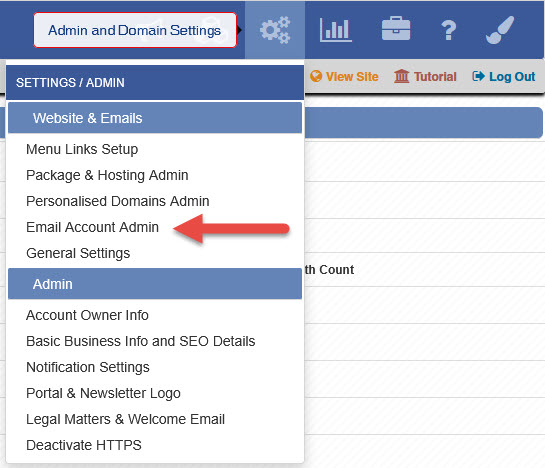
Open Admin and Domain Settings
Once logged in, find the toolbar at the top of the screen. Click the gear icon (Admin and Domain Settings).

Select Email Account Admin
A dropdown menu appears. Click Email Account Admin.
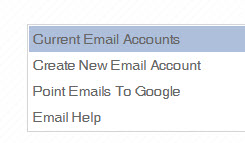
Click Current Email Accounts
The Email Management menu opens. Click Current Email Accounts to see all email addresses on your domain.
Each account shows three action icons on the right:
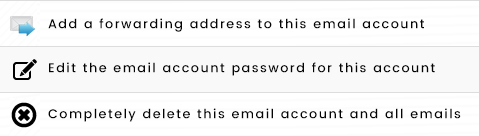
- Forward icon — set up email forwarding to another address
- Edit password icon — change the email account's password
- Delete icon — permanently delete the email account
Change an email password
Click the edit password icon next to the account you want to update. The Edit Email Account screen opens.
Your current password is shown in encrypted form. Type your new password into the new password field.
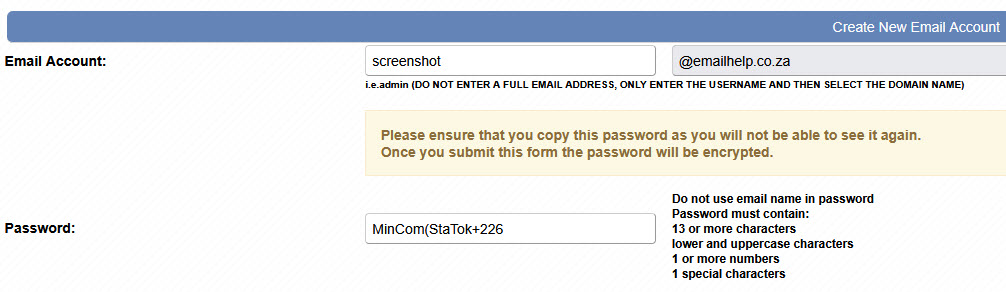
Your new password must meet all of the following:
- At least 13 characters long
- Contains uppercase and lowercase letters
- Contains at least one number
- Contains at least one special character (e.g. !, @, #)
- Does not contain your email name
When the password meets all requirements, the field turns green. Click SUBMIT to save.

Access email via Webmail
You can read and send emails directly in your browser. Log in at:
http://mail.your-domain.co.za
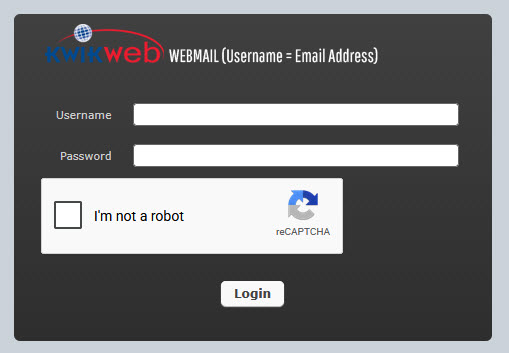
Replace your-domain.co.za with your actual domain name. Enter your full email address and password, complete the reCAPTCHA, then click Login.
💡 Useful tips
- Use a password manager (such as Bitwarden or 1Password) to store your email passwords securely.
- After changing a password, check all email apps and devices to make sure they are syncing correctly.
- For server settings to configure email on a phone or desktop client, see the Email Settings page.
- Setting up email on an Android device? See the Android Email Setup Guide.
- Setting up email on an iPhone device? See the iPhone Email Setup Guide.
Still need help?
Our support team is happy to assist with any email questions.
View General Help & Contact Info


